FXCM’s Beginner’s FAQ
Initial Setup
1. How do I change my trading station to trade using money (amount) per pip settings?
Go to: Systems>Options> General Trading> Amount Mode and select Currency/Point Trade
2. How do I enable "micro lot" settings on my account?
Unfortunately, the only way to change this setting is by contacting FXCM directly (by email, Live Chat or Phone) - Click here for contact details of FXCM (UK) or FXCM (Asia)
3. How do I view other Currency pairs?
Go to: Symbols and check on the currency pairs that you want to view.
4. How do I view more than 20 Currency pairs in the dropdown?
Unfortunately, this is only available for Live/Real accounts and you can only change this setting is by contacting FXCM directly (by email, Live Chat or Phone) - Click here for contact details of FXCM
5. How do change the time on my Trading Station?
Go to: Systems>Options> General Trading> View Format of Time Fields and select the relevant settings.
Note: the Local option would be the time used on your computer.
6. Can I change the time slots on the 4 hour charts?
Unfortunately, you cannot change the time settings on the 4 hour charts. This is because FXCM takes 10pm (the close of NY market) as the start of the day so all the 4hr charts are adjusted to that.
Marketscope (Chart)
1. How do I find/view the Marketscope?
Go to: Charts>Create Marketscope
Alternatively, use shortcut: Ctrl + M
2. How do I add indicators to the chart?
Go to: Insert>Add Indicator Or Select the relevant Indicators
Alternatively, use shortcut: I
Alternatively, on the charts: Move Right Click>Add Indicator
3. How do I place an Entry Order (Live Entry Order)?
Go to: Trading>Create Entry Order
Alternatively, use shortcut: Ctrl + Shift +E
Alternatively, on the charts: Right Click>Create Entry Order
Alternatively, select the Buy/Sell button on the Trading Station symbol (See figure below)
4. How do I place a Market Order (Pre-set Entry Order)?
Go to: Trading>Create Market Order
Alternatively, use shortcut: Ctrl + Shift +M
Alternatively, on the charts: Right Click>Create Market Order
Alternatively, Select the correct price on the chart axis and Left Click (See figure below), a Market Entry Order window will appear.
5. How do I change the OHLC Bars to candlesticks (and vice verse)?
Go to: Chart>Chart Mode> Candlesticks
Alternatively, on the charts: Right Click>Chart Mode> Candlesticks
Alternatively, use shortcut: Ctrl + Alt + C (Candlesticks)
: Ctrl + Alt + L (Line)
: Ctrl + Alt + B (OHLC Bars)
6. Can I adjust my orders from Charts?
Yes, changing an order from charts is easy. Once, an order has been placed, those orders will appear on the relevant currency charts. To change the order, just click on the Entry, Stop Loss or Limit price line and drag it to the new price. A window will appear to confirm your order.
You can do the same for both Open Trades or Market Orders.
7. How do I add more charts to the Marketscope?
Go to: File>Create MarketShot
Alternatively, use shortcut: Ctrl + N
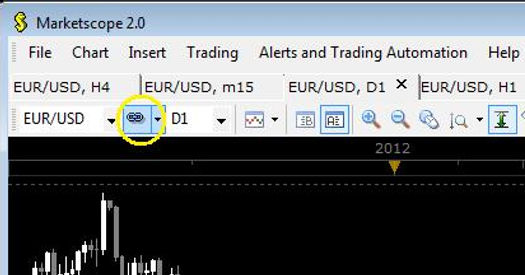
8. How do I link all my charts on Marketscope?
Go to the Link button on the charts (Yellow Ring in image below) and select: LinkAll on each chart.
Alternatively, select the relevant colours to link charts with the same colours.
9. Is there a quick way to zoom in and out of the charts?
Yes, on the chart, you can (1) drag the axis to the left/right or (2) scroll the wheels of the mouse.
10. How do I change the order of the currency list on MarketScope?
You can do this by changing the order of currency pairs on the Trading Station.
-
On the Advanced Dealing Rates, drag and drop the pairs accordingly.
-
On the Simple Dealing Rates, right click on the pairs and select 'Move Up' or 'Move Down'.
The same order will be applied on the MarketScope charts.
For more advance user guide, please see FXCM's Training Videos.